
You'll Need:
- Any Otto subscription
- A Super User role (or higher)
Why view previous conversations?
- Find a specific customer conversation.
- Check what a customer asked for.
- Review an order, booking, complaint, or delivery issue.
- Confirm whether Otto transferred a call.
- Listen to the original call audio.
- Download transcripts or audio for internal review.
- Understand common questions customers are asking.
Open the Conversations page
- Log in to Otto.
- In the left-hand navigation, find the Monitor heading.
- Select Conversations.
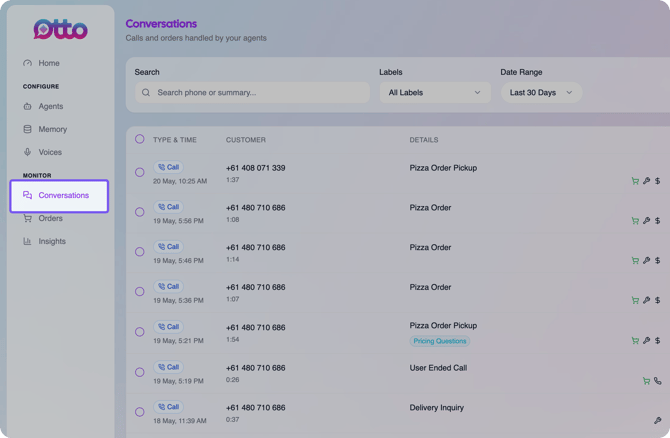
The Conversations page shows a list of conversations Otto has taken. The most recent conversations appear at the top.
Find a specific conversation
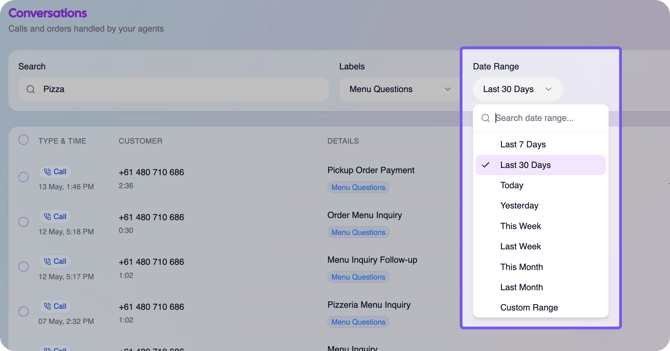
Use the filters at the top of the Conversations page to narrow the list.
-
Search: Type a phone number or text from the conversation.
-
Labels: Filter by automatically applied labels.
-
Date range: Select the time period you want to review.
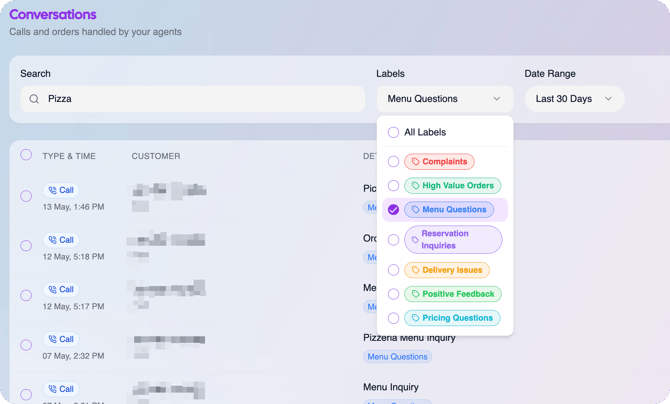
Automatic labels can help you quickly find different types of calls, such as:
-
Complaints
-
High value orders
-
Menu questions
-
Reservation enquiries
-
Delivery issues
-
Positive feedback
-
Pricing questions
Understand the conversations list
Each row in the list gives you a quick summary of one conversation.
-
Time: Shows when the conversation took place. Conversations are sorted from newest at the top to oldest further down the list.
-
Customer: Shows the caller's phone number and the duration of the call.
-
Details: Shows a short AI-generated subject so you can understand the call at a glance.
-
Tool icons: Shows small icons for tools Otto used during the call.
-
Status: Shows the conversation status, such as whether an order was placed.
Use quick actions from the list
Hover over a conversation row to show the quick action buttons on the right.
From these buttons, you can:
-
View the transcript.
-
Play the call audio.
-
Download the call audio.
These actions are useful when you want to quickly check one call without opening or exporting multiple conversations.
Download multiple conversations
You can select multiple conversations from the list when you need to download several records at once.
-
Tick the checkbox beside each conversation you want to select.
-
Use the floating toolbar that appears at the bottom of the screen.
-
Choose whether to download the selected transcripts or audio.
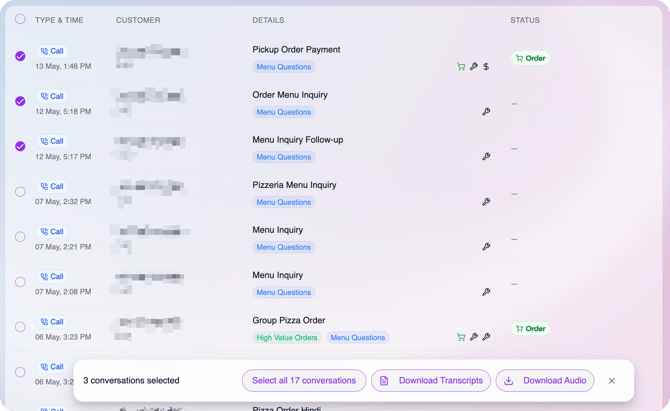
You can also use the toolbar to select all conversations in the current view. This is useful if you have filtered the page to a specific date range and want to download all matching transcripts or audio.
Open a conversation transcript
Select a conversation to open the full conversation view.
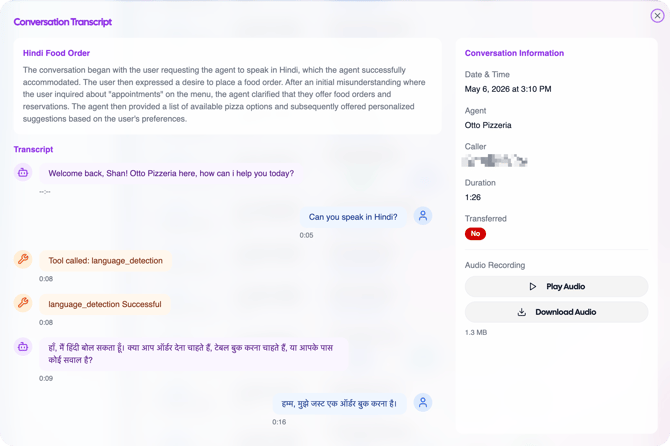
At the top of the conversation, you can see a summary of the call. Below that, you can review the full transcript, including what the caller said, what Otto said, and any tools Otto used during the call.
For example, the transcript may show when Otto calculated an order total or sent an order to your point of sale.
The right-hand side of the conversation view shows key information about the call.
This can include:
-
Date and time
-
Agent name
-
Caller phone number
-
Call duration
-
Whether the call was transferred
You can also play the audio or download the audio from this view.
Tips
-
Use the phone number search when a customer calls back about a previous conversation.
-
Use labels to quickly find complaints, delivery issues, or high value orders.
-
Use the date range filter before downloading transcripts or audio in bulk.
-
Review both the transcript and audio if you need to understand tone, background noise, or anything unclear in the transcript.
What happens next
Once you find the conversation you need, you can review the transcript, listen to the audio, download records, or use the details to follow up with the customer or your team.