
Use the voice library to listen to Otto voices, create custom voices, and choose the voice your Otto agent uses when speaking with customers.
You'll Need:
- An Otto Pro or higher subscription
- A Super User role or higher
Open the voice library
- Log in to Otto.
- In the left-hand navigation, find the Configure heading.
- Select Voices.
The Voices page is your voice library. From here, you can listen to available voices, create your own custom voices, and then assign a voice to an agent from the agent settings.
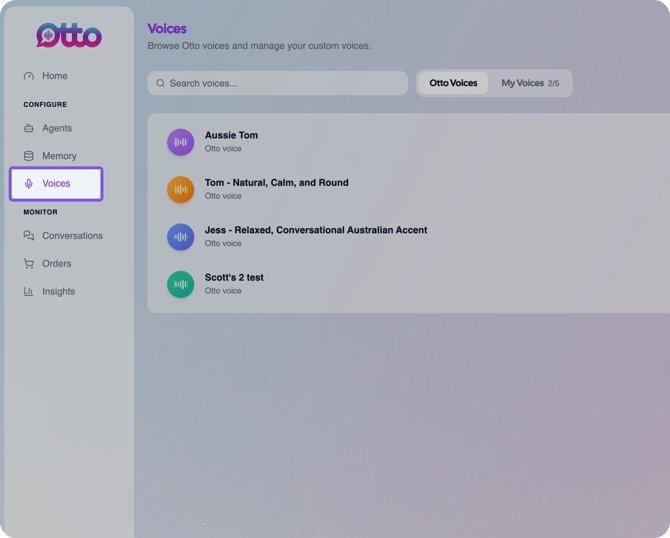
The Voices page includes two main tabs:
- Otto voices
The Otto voices tab lists voices that are included with Otto.
These voices are available across the Otto platform. They are created and managed by Otto, and new Otto voices may be added over time. - My voices
The My voices tab lists any custom voices you have created for your account.Otto allows you to create up to five custom voices in your account. Custom voices are useful when you want your agent to have a specific accent, tone, pace, or gender.
Your custom voices are only available in your account. They are not shared with other Otto accounts.
Create a custom voice
- Open the Voices page.
- Select Create voice in the top-right corner.
- Describe the kind of voice you want to create.
- Select Generate previews.
- Wait while Otto creates three voice previews from your prompt.
- Listen to each preview.
- Select the voice you like best.
- Select Save to my voices.
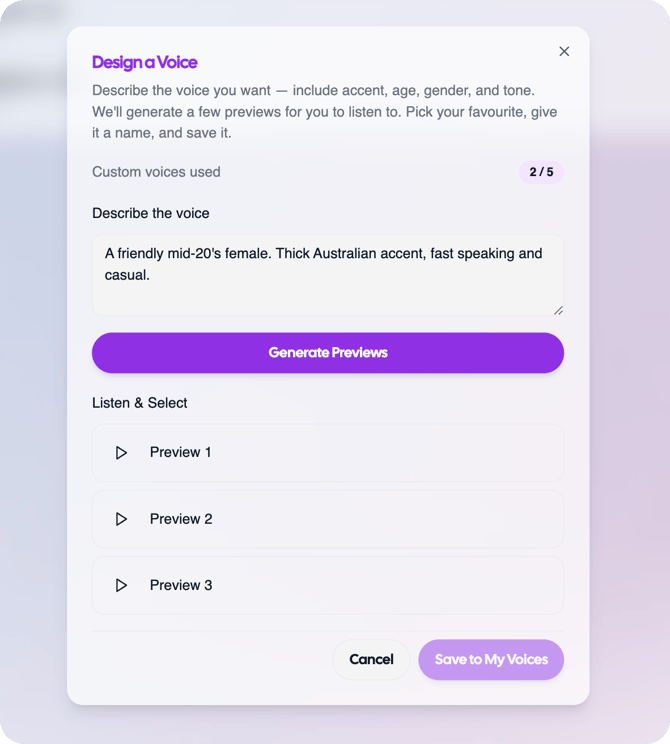
If none of the previews are right, refine your prompt and select Generate previews again. You can repeat this process until you create a voice you are happy with.
Tips for designing a voice
When describing the voice you want, include the details that matter most for your venue.
Useful details include:
- Age: For example, child, teen, middle-aged, or elderly.
- Accent: For example, thick Australian, light French, or neutral American.
- Gender: For example, male, female, or gender neutral.
- Tone: For example, warm, assertive, anxious, joyful, calm, or energetic.
- Speed: For example, fast, slow, or measured.
The clearer your prompt is, the easier it is for Otto to generate previews that match the voice you want.
Assign a voice to an agent
After you create or choose a voice, assign it to the agent that should use it.
- Select Agents from the left-hand navigation.
- Select the agent you want to update.
- Open the Settings tab.
- Find Voice and ambience.
- Select the agent voice you want to use.
- Save the agent.
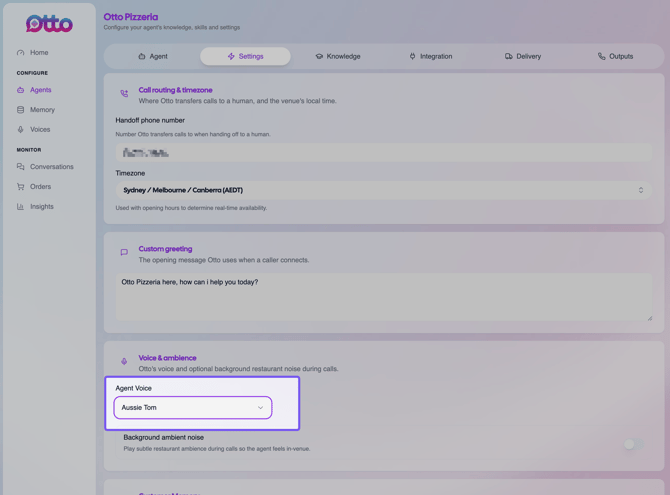
You can choose from Otto voices as well as any custom voices you have created in your account.
What happens next
Once you save the agent, Otto will use the selected voice on future calls for that agent. Place a test call after changing the voice so you can hear how it sounds to customers.